IPTV UK for Firestick
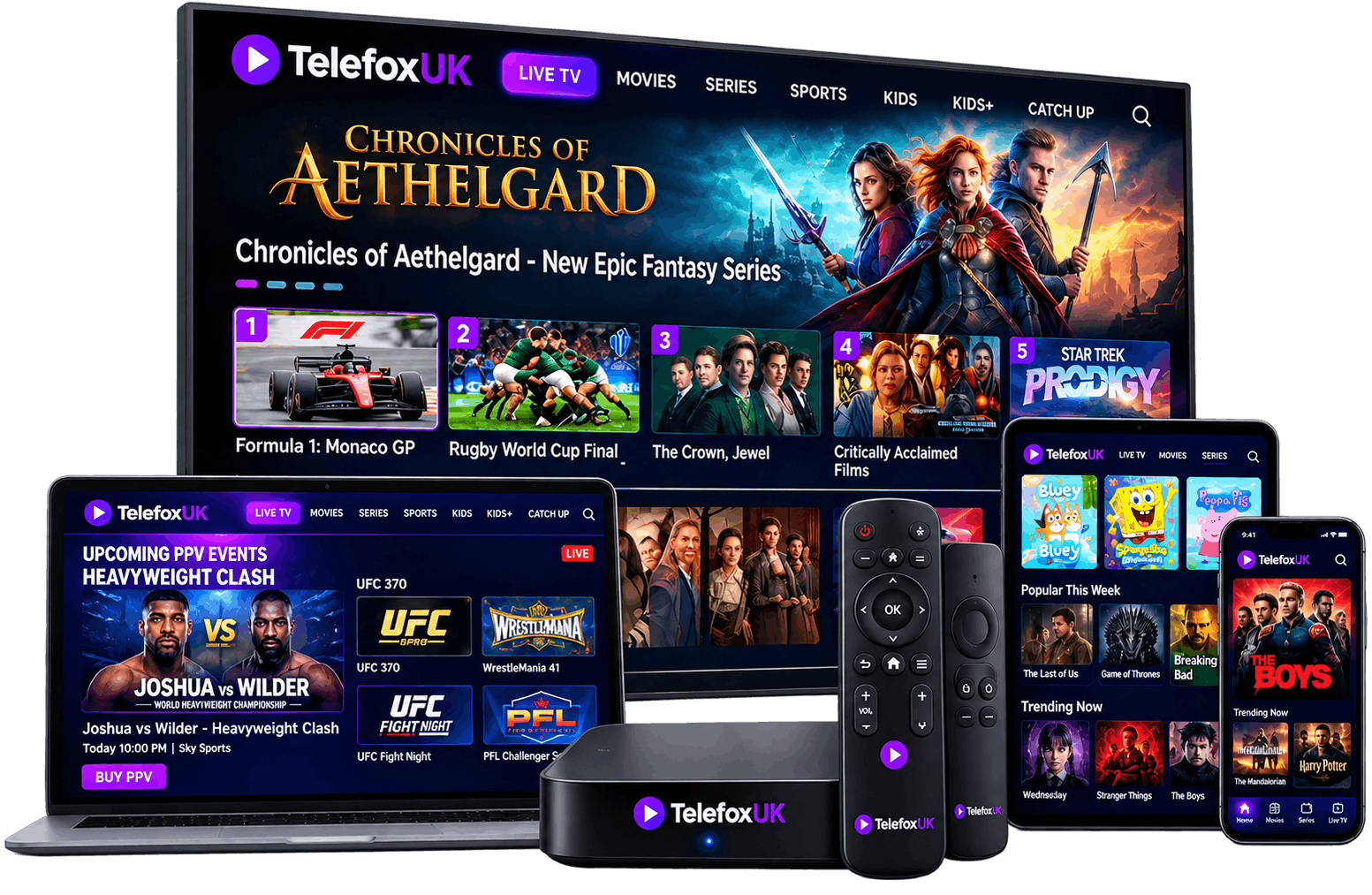
The Amazon Fire TV Stick is arguably the most popular streaming device on the market due to its affordability, portability, and powerful Android-based operating system. Using an IPTV UK subscription on a Firestick transforms this inexpensive HDMI dongle into a comprehensive entertainment hub, capable of delivering thousands of live channels, sports, and movies.
This guide explains exactly how IPTV functions on a Firestick, what apps to use, and how to optimize your device settings to guarantee a buffer-free viewing experience.
Can You Watch IPTV on Firestick?
Yes, absolutely. Because the Fire OS is based on Android, it is highly compatible with nearly all industry-standard IPTV player applications.
While some official IPTV apps might not be directly available in the Amazon Appstore, the Firestick allows you to "sideload" applications (installing APK files directly) with incredible ease using the free Downloader app. This open ecosystem makes the Firestick the preferred hardware choice for most IPTV subscription users.
What You Need Before Setup
Before you begin configuring your device, you must have three things ready:
- A Compatible Firestick: While older generations work, the Fire TV Stick 4K or Fire TV Stick 4K Max are highly recommended for the processing power required to decode high-bitrate live streams smoothly.
- An Active Subscription: You need your login credentials (typically an Xtream Codes API Username, Password, and Portal URL) provided by your IPTV host. If you don't have one, request a trial first.
- The Downloader App: Installed directly from the Amazon Appstore on your device.
How to Set Up IPTV on Firestick
The process involves installing a media player app and entering your subscription details. We highly recommend using IPTV Smarters Pro or TiviMate. Here is a general setup overview:
Step 1: Enable Sideloading
Go to Settings > My Fire TV > Developer Options. Turn ON Apps from Unknown Sources. (If you don't see Developer Options, click on About, then click your Fire TV device name 7 times rapidly to reveal it).
Step 2: Install the Player App
Open the Downloader app. Enter the specific download code or URL provided by your IPTV service (or search for the Smarters Pro APK). Click Download, then Install.
Step 3: Enter Your Credentials
Open your newly installed player app. Select the option to login via Xtream Codes API (this is much faster and cleaner than loading a raw M3U link). Enter the Username, Password, and URL provided in your subscription email. Click Add User.
The app will now download the live channels, VOD library, and Electronic Programme Guide (EPG). You are ready to watch!
Need a reliable Firestick subscription?
Our anti-buffer servers are optimized specifically for Amazon Fire TV devices.
Recommended Firestick Settings
To ensure your Firestick performs optimally while streaming live TV, make these quick adjustments:
- Clear Storage: Firesticks have limited storage (usually 8GB). Uninstall apps you do not use to free up space. A full storage drive will cause the device to overheat and the stream to stutter.
- Disable Background Processes: Go to Settings > Applications > Manage Installed Applications and Force Stop any heavy apps running in the background.
- Update Firmware: Always ensure your Fire OS is fully updated for the latest security and performance patches.
Fixing IPTV Buffering on Firestick
If your stream freezes or buffers, work through these troubleshooting steps:
- Check Your Wi-Fi: Live streaming requires a constant, stable connection. If your router is far away, the Wi-Fi signal might be dropping. Consider buying an Amazon Ethernet Adapter for your Firestick to hardwire the connection.
- Use a VPN: Internet Service Providers (ISPs) sometimes throttle IPTV traffic. Installing a VPN app on your Firestick can mask your traffic and restore your streaming speeds.
- Clear App Cache: Go to Settings > Applications > Manage Installed Applications, select your IPTV player app, and click Clear Cache.
- Provider Server Issues: If you have done all the above and it still buffers during a big football match, the issue is likely your cheap IPTV provider having overloaded servers.
IPTV Firestick FAQs
Which is the best IPTV app for Firestick?
TiviMate is widely considered the best premium app due to its incredible TV-guide layout and recording features, though it requires a small one-time payment to unlock premium features. IPTV Smarters Pro is the best free alternative and is incredibly user-friendly.
Can I watch 4K IPTV on a standard Firestick?
If you have an older, non-4K Firestick (like the Fire TV Stick Lite), the device cannot decode 4K video. You will need a Fire TV Stick 4K and a 4K-compatible television to enjoy UHD streams.
Is it legal to use IPTV on a Firestick?
Yes, installing an IPTV player app on a Firestick is perfectly legal. However, the legality of the content you stream depends entirely on the IPTV provider you subscribe to and whether they hold the correct distribution licenses. Read our Legal IPTV guide for more information.