IPTV UK for Smart TV
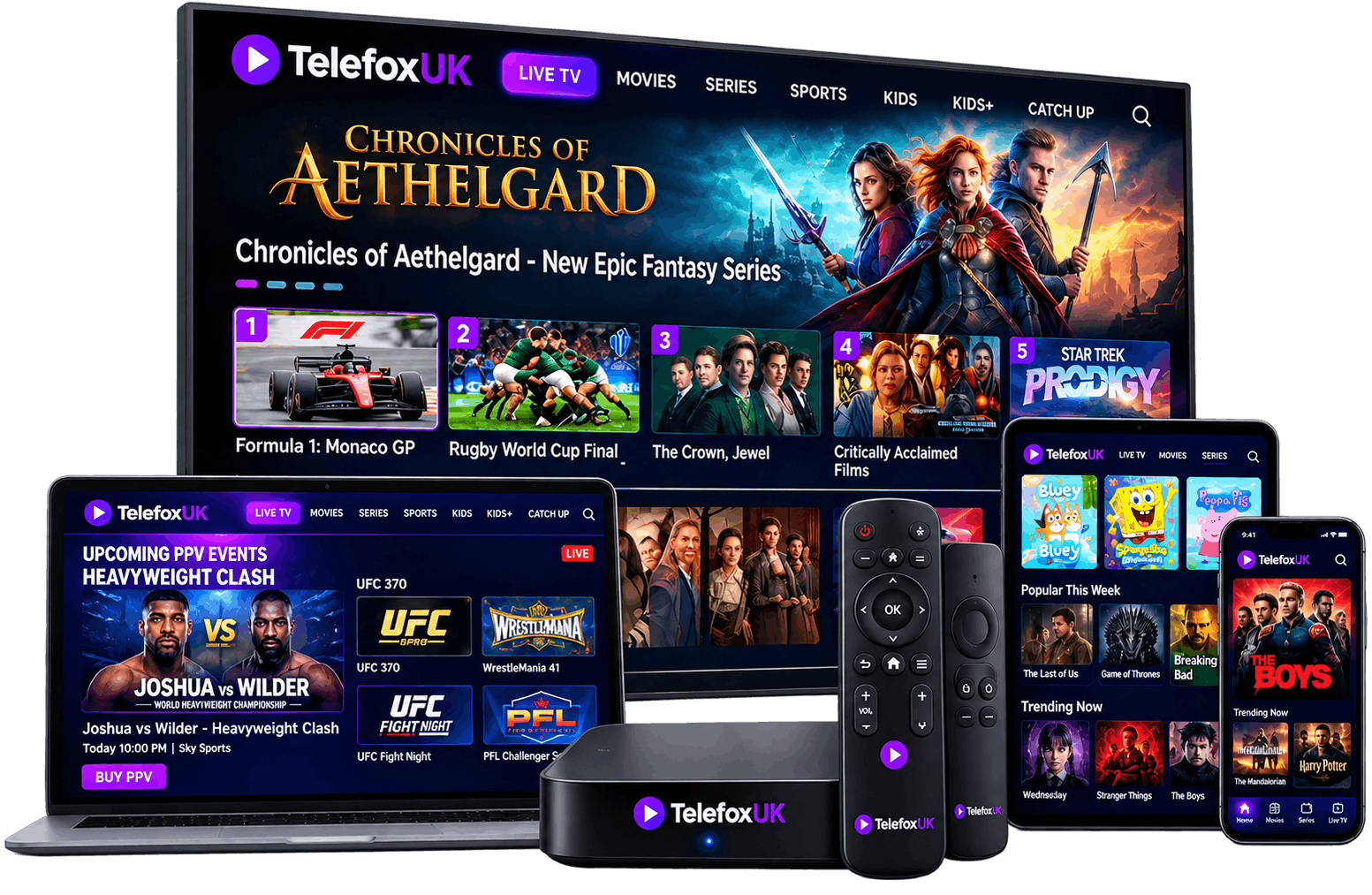
Watching an IPTV UK subscription on a Smart TV is the ultimate cord-cutting experience. By installing a streaming application directly onto your television, you eliminate the need for external set-top boxes, extra HDMI cables, and multiple remote controls.
However, because different TV manufacturers use entirely different operating systems, the setup process and app availability will vary depending on the brand of TV you own. This guide breaks down how to get your IPTV service running smoothly on Samsung, LG, and Android/Google TVs.
Can You Use IPTV on a Smart TV?
Yes, but there is a crucial distinction you must understand: Smart TVs only host media player applications; they do not come with channels built-in.
You must first download an IPTV player app (such as IBO Player, Set IPTV, or TiviMate) from your TV's official app store. Once installed, you will need to input the login credentials (usually an M3U link or Xtream Codes) provided by your IPTV provider. The app simply reads the playlist from the provider's servers and displays it on your screen.
IPTV on Samsung Smart TV
Modern Samsung TVs run on the Tizen OS. While Tizen is incredibly fast, it operates within a closed ecosystem, meaning you cannot easily "sideload" unofficial apps like you can on a Firestick. You are restricted to whatever is available in the official Samsung App Store.
Recommended Apps for Samsung:
IBO Player, Set IPTV, and Bay TV.
Note: Many of these apps offer a 7-day paid trial 1 month, after which you must pay a small, one-time activation fee (usually around €5-€8) to the app developer. This is separate from your IPTV subscription cost.
IPTV on LG Smart TV
LG TVs operate on webOS, which is another closed ecosystem similar to Samsung. You must use the official LG Content Store to find your media players.
Recommended Apps for LG:
IBO Player, DuplexPlay (if available in your region), and Flix IPTV.
Just like on Samsung, most premium player apps on LG require a small one-time activation fee after a brief trial period.
IPTV on Android & Google TV
If you own a Sony, Philips, Hisense (some models), or TCL TV that runs on Android TV or Google TV, you have the best Smart TV experience available. Because it uses the Google ecosystem, you have access to the Google Play Store, giving you thousands of app choices.
Recommended Apps for Android TV:
TiviMate (widely considered the best app ever made for IPTV), IPTV Smarters Pro, and XCIPTV.
Ready to set up your Smart TV?
Grab a trial pass and test our premium channels directly on your screen.
How to Set Up IPTV
While the exact steps vary slightly by app, the general process is universally similar:
- Download the App: Open your TV's app store, search for "IPTV", and download a highly-rated player (e.g., IBO Player).
- Find Your MAC/Device ID: Open the app. It will display a MAC Address or Device ID on the screen.
- Upload Your Playlist: On your smartphone or computer, visit the app developer's website (the URL will be shown on your TV screen). Enter your TV's MAC address, and then paste the M3U Playlist URL provided by your IPTV service.
- Restart the App: Close the app on your TV and open it again. It will download the channels and TV guide.
Note for Android TV users: If you use an app like Smarters Pro, you don't need to visit a website. You simply type your Xtream Codes Username and Password directly into the TV app using your remote.
Smart TV IPTV Troubleshooting
If you run into issues on your Smart TV, check these common fixes:
- App Won't Load Channels: Ensure you pasted the M3U link perfectly on the developer's website. A single missing character will cause it to fail.
- Constant Buffering: Smart TV Wi-Fi chips are often very weak. If your TV is buffering on HD channels, plug an Ethernet cable directly from your router into the back of the TV.
- No EPG (TV Guide): If your channels load but the TV guide is empty, you may need to ask your provider for the specific "EPG URL" and paste it into your app's settings.
Smart TV IPTV FAQs
Is it better to use a Smart TV app or a Firestick?
While Smart TV apps are convenient, an Amazon Firestick 4K generally has a faster processor and vastly superior app choices (like Smarters and TiviMate). If your Samsung or LG TV feels slow when loading the channel list, buying a Firestick is a cheap and highly effective upgrade.
Do I have to pay for the IPTV app?
If you are on Samsung (Tizen) or LG (webOS), almost all good apps require a one-time activation fee (usually around €5) paid to the app developer. Android TV users can find completely free apps like Smarters Pro on the Google Play Store.
Why did my Smart TV app suddenly stop working?
If the app was working fine and suddenly displays a payment screen, your 7-day app trial has likely expired. You must visit the app developer's website and pay the one-time activation fee to unlock the app permanently. This is unrelated to your monthly IPTV subscription.